Spell Checker For Google Docs Add On
✨ Smart Code & Spell Checker
Your Automated Editing Partner for Text, HTML & PHP
The Ultimate Guide to Choosing a Spell Checker for Google Docs Add-on
Whether creating an important business proposal, writing a term paper, or crafting a creative story, typos can easily happen. We’ve all had it happen: you share a document, only to discover a glaring mistake in the very first paragraph. Although Google Docs has significantly changed the way we collaborate online, relying solely on its default spell checker may not be the answer. This is where the Spell Checker for Google Docs add-on comes in handy. Adding a specialized third-party extension to your workspace can instantly improve your proofreading. Here, we explain why you need a specialized tool, which are the best add-ons, and how to easily integrate them into your workflow.
Why the Default Tool Falls Short
Google Docs comes with a useful built-in spelling and grammar tool. It underlines misspelled words in red, highlights grammar errors in blue, and provides basic auto-correction. What more do you need? The reality is that the native tool only handles the basics. It’s great at catching common typos but often misses the nuances of language.
For example, the default checker often overlooks context-dependent errors. It might overlook common mistakes between “their,” “there,” and “they’re,” or fail to catch the subtle difference when confusing “affect” and “effect.” It’s entirely possible to write a sentence that’s grammatically correct but incredibly awkward to read, and the native tool won’t flag a single error. Furthermore, it lacks the advanced, easy-to-use features needed for high-level professional writing. It offers no information about tone detection, nor does it warn when you overuse the passive voice—a common mistake that undermines effective writing.
Furthermore, for users who need to strictly adhere to a specific style guide—such as APA, MLA, or Chicago—the native checker offers zero guidance. If you’re looking to expand your vocabulary, eliminate repetitive phrases, or ensure your sentences flow smoothly from one sentence to the next without sounding robotic, this native tool will teach you much more. An Advanced Spell Checker for Google Docs add-on fills this gap, turning a simple word processor into a powerful writing assistant.
Special Benefits of Upgrading Your Proofreading
Integrating a premium spell checker into Google Docs offers benefits far beyond fixing misspellings.
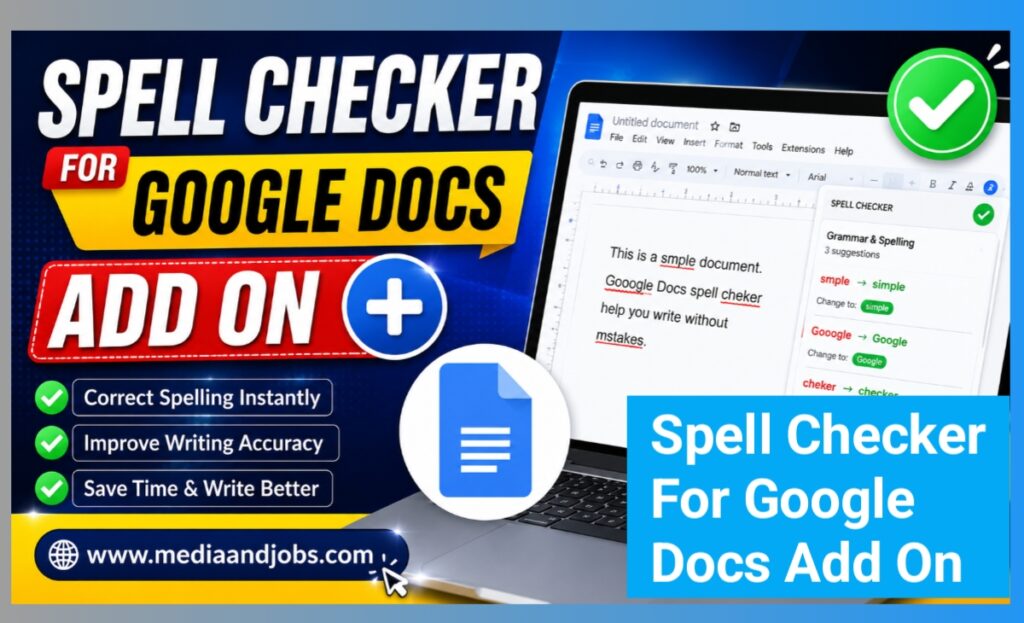
Increases productivity: Instead of repeatedly reading a document to catch minor errors, a dedicated add-on scans your text in real time, highlights issues, and provides one-click solutions. This allows you to focus solely on your idea instead of getting bogged down in editing routines.
Acts as a writing coach: By explaining why a sentence is grammatically incorrect, these tools help you learn from mistakes and naturally improve your writing skills over time. You begin to recognize bad habits before the tool flags them.
Multilingual support: If you write in Spanish, French, or German, specialized tools are easily adapted. They provide the same accuracy and structured feedback as in English, which is crucial for translation work or global teams.
Maintains tonal consistency: Whether you want to make your text confident, casual, or very formal, advanced extensions analyze your word choice and suggest options that directly match your desired tone.
The Best Spell Checker Add-ons Available Today
With countless options on the Workspace Marketplace, choosing the right tool can seem daunting. Here are some key add-ons that can instantly improve your writing.
LanguageTool
LanguageTool is widely considered a top-tier grammar and spell checker. Its biggest selling point is its robust multilingual support. It checks your writing in over 25 languages, making it a must-have for international teams. It also catches tricky contextual errors that Google consistently misses. Its free tier requires no registration and respects user privacy by never storing your text on its servers.
Grammarly for Google Docs
Grammarly remains the champion of writing assistants. Although it primarily operates as a browser extension, it easily integrates with Docs via the sidebar. Grammarly goes beyond just spelling; it also looks at clarity, engagement, and delivery. It helps you rephrase wordy sentences, suggests a stronger vocabulary, and ensures perfect punctuation. For a comprehensive tool focused solely on readability, Grammarly is hard to beat.
PaperPal
If you’re an academic, researcher, or student, PaperPal is designed specifically for you. Academic writing requires a highly formal tone and strict structural rules. PaperPal has been trained on millions of scholarly articles to provide domain-specific suggestions. It features an AI paraphraser and advanced grammar checks to ensure your thesis or research paper appears professional, objective, and authentic.
Wordip
Wordip uses artificial intelligence for real-time proofreading. It securely analyzes sentence structure deep within your document, catching a significant number of errors. It places a strong focus on data security, operating completely without human intervention, keeping your sensitive writing completely confidential.
How to Install Add-ons in Google Docs
Adding one of these powerful tools to your workspace is very easy. Google has simplified the installation process so you can start writing in minutes.
Open a document: Start by opening any existing Google Doc or creating a new one.
Access the menu: At the top of the screen, click the Extensions menu item.
Open the Marketplace: Select Add-ons from the drop-down menu, then click Get add-ons. This action will automatically launch the Google Workspace Marketplace.
Search: Use the search bar in the top right corner to find the specific tool you want to try (e.g., “LanguageTool” or “Paperpal”).
Install: Click the add-on’s card, click Install, and give the tool the necessary permissions to view and edit your text.
Once installed, activate your new writing assistant at any time by returning to the Extensions menu, selecting your add-on, and launching it. It usually opens in a handy sidebar on the right side of your screen, ready to scan your text.
Pro Tips for Getting the Most Out of Your Tool
To maximize the value of your chosen spell checker for Google Docs add-on, you need to customize it to your specific needs. Start by building your own personal dictionary. Whenever the tool flags an industry-specific term, an unfamiliar acronym, or a brand name, click “Add to Dictionary.” This prevents the tool from repeatedly flagging correct words and saves you very much of time during the final editing phase.
Also, take a moment to look at the settings panel. Many tools allow you to turn specific checks on or off. For example, if you write informal blog posts or creative fiction, you may want to disable the strict passive voice warning or the casual language filter. Customizing these settings ensures the tool works for you, rather than forcing you to adapt your voice to its default rules.
Finally, familiarize yourself with keyboard shortcuts. Many third-party extensions offer quick hotkeys to instantly accept or reject suggestions, significantly speeding up your proofreading process. Learning these shortcuts keeps your hands firmly planted on the keyboard and your mind fully focused on the creative flow.
Conclusion
Writing is a demanding, highly personal process, but proofreading doesn’t have to be a painful, time-consuming task. While Google Workspace’s built-in features provide a good baseline safety net for catching basic typos and major punctuation errors, they can’t match the advanced, AI-driven capabilities of a dedicated spell checker for Google Docs add-on. Using simple tools like Language Tool, Grammarly, or Paper pal, you can completely transform your editing workflow. You’ll save valuable time, eliminate frustrating revision cycles, and significantly improve the clarity, authority, and impact of your writing. Don’t let unnecessary grammar mistakes or poor word choice undermine your hard work and expertise. Install a premium writing assistant today, benefit from real-time feedback, and start publishing your work with complete confidence.